
It’s time to make your countdown timers look pretty!
From the Design Settings tab, you’ll see 2 timers; a Webpage Timer and an Email Timer.
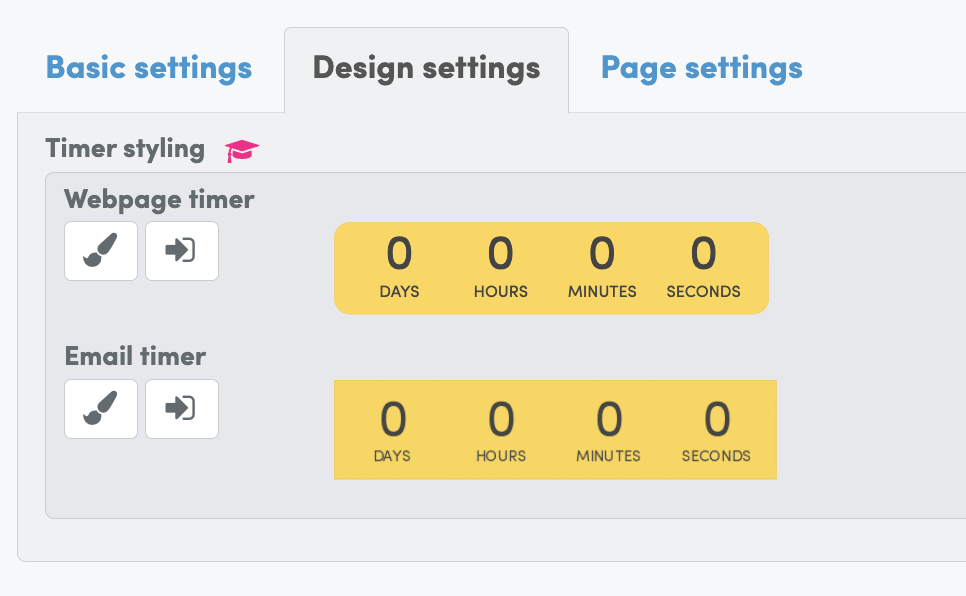
To edit your timers, just click the ‘Change Timer Appearance’ button (the one with the paintbrush!)
You’ll then be able to page through each of the 5x stunning timer designs and choose which design you’d like to edit.
Whilst I’m not going to highlight ever individual design setting in this article (you can go and have a play around to make your timers look great), there are a few key settings that are worth paying attention to;
- Page Position: Use this to configure how you’d like your countdown to look on the page
- Inline (Embedded into a fixed position on your page)
- Top/Bottom (Add a narrow floating bar across the top/bottom of your page)
- Full Width Top/Bottom (Add a floating bar across the full width of the top/bottom of your page)
- Responsive Sizing: Use this to allow your timer to expand to the full size of the container on your page
- Expired Text/ Subtext: Display a message when your timer has expired (best used for email timers)
- Banner Text/ Button: Add a Headline, Subheading and Button into your timer design (Webpage timers only)
(NOTE: If you’d like to unlock our full Branding Suite to customise your countdown colours and fonts, you can click here to upgrade your account to Countdown Hero PRO today)
If you’d like to copy a design between countdown timers for a synchronised look and feel to your countdown campaign, just click the ‘Apply This Style To Webpage/Email Timer’ and your settings will be automatically transferred to the other design.
IMPORTANT: Once you have finished configuring your Countdown Hero settings, you will need to come back to this tab to copy the HTML code for each timer, in order to add it onto each of your pages and inside your emails too.
A future step will cover this, but for now you can click ‘Next’ and advance to the ‘Page Settings’.
——
NEXT UP:
- EVERGREEN COUNTDOWNS: Adding Your Timers Onto Your Webpages (Click Here)
- FIXED DATE COUNTDOWNS: Setting Up Your Fixed Date & Time Pages (Click Here)